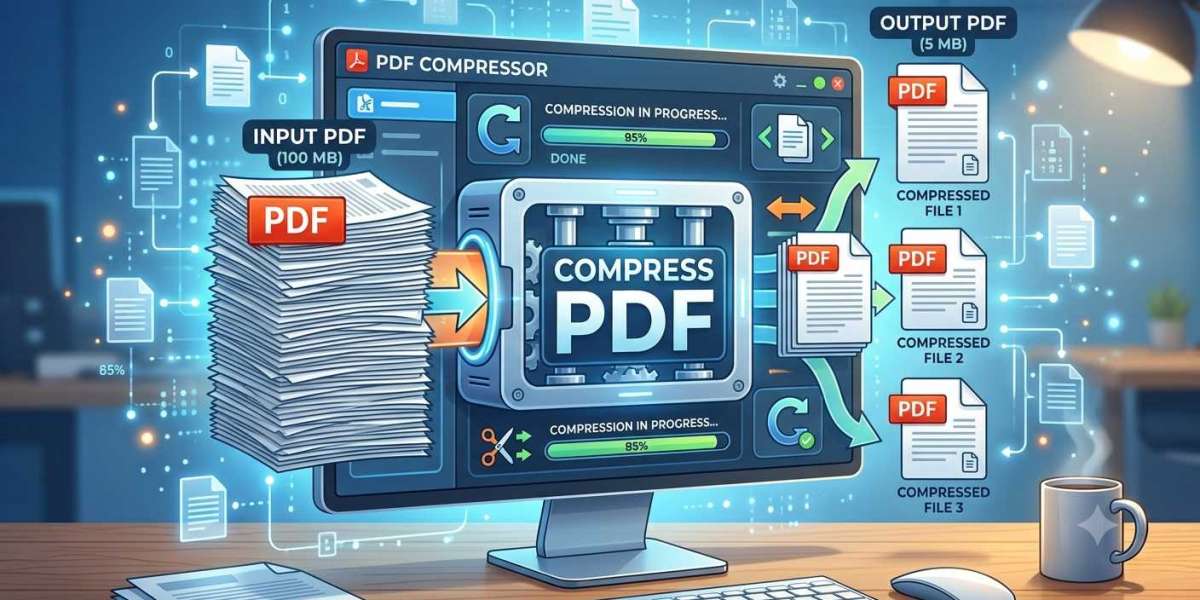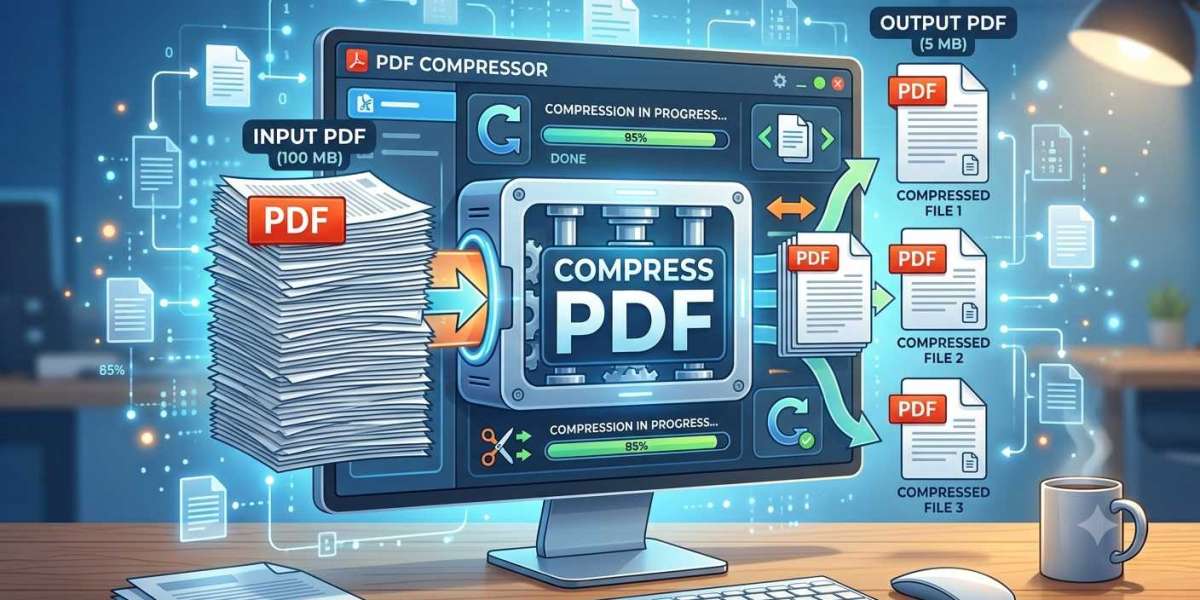

If you've ever tried to email a PDF only to hit an attachment size limit, or watched a website time out while uploading a file, you already know the problem. PDFs balloon in size fast especially when they're packed with images, embedded fonts, or scanned pages and that bloat gets in the way of sharing, storing, and uploading documents efficiently.
Compressing a PDF solves this. Done right, it shrinks the file dramatically while keeping the document sharp, readable, and professional. Done poorly, it turns crisp text into a blurry mess. This guide walks through why PDFs get so large, how compression actually works, and how to compress yours without wrecking the quality.
Why PDFs Get So Large in the First Place
A PDF isn't just text on a Compress a PDF page it's a container that can hold images, fonts, vector graphics, metadata, embedded attachments, and even interactive form fields. Several things typically drive file size up:
- High-resolution images. Photos or scanned pages saved at print resolution (300 DPI or higher) are far bigger than what's needed for on screen viewing.
- Embedded fonts. Documents that embed entire font families rather than just the characters used carry a lot of dead weight.
- Scanned documents. A scanned page is essentially a large image, so a 20-page scanned contract can easily outweigh a 200-page text-based report.
- Redundant data. Multiple revisions, hidden layers, or leftover metadata from editing software can quietly inflate file size over time.
Understanding which of these applies to your file helps you pick the right compression approach.
How PDF Compression Actually Works
Compression tools generally attack file size from a few angles:
- Image downsampling Reducing the resolution of embedded images to a level appropriate for screens (typically 150–200 DPI) rather than print.
- Image re-encoding Converting images to more efficient formats or compression algorithms (like JPEG compression for photos) that lose minimal visible quality while cutting size significantly.
- Font subsetting Keeping only the specific characters and styles actually used in the document, instead of the full font file.
- Removing redundant data Stripping unused objects, duplicate resources, and unnecessary metadata that don't affect what's displayed.
The best tools apply these selectively, so text stays vector-sharp (since text in a proper PDF isn't an image and compresses without any quality loss) while only the heavier image content is reduced.
Choosing the Right Compression Level
Most compression tools offer a few quality tiers, and picking the right one depends on what the file is for:
- High quality / low compression – Best for documents that will be printed or need to preserve fine visual detail, like design portfolios or technical diagrams.
- Medium / balanced A good default for everyday sharing: reports, contracts, resumes, and presentations. Noticeably smaller with virtually no visible quality loss on screen.
- Maximum compression / smallest size – Ideal when the priority is minimizing file size for email or quick uploads, and slight visual softening in images is an acceptable trade-off.
For most business and personal use cases, the balanced setting is the sweet spot it can reduce file size by 50–90% depending on the original content, while keeping documents perfectly readable.
Step-by-Step: Compressing a PDF
- Identify what's making the file large. If it's mostly text, compression gains will be modest but still helpful. If it's image-heavy or scanned, expect much bigger size reductions.
- Choose a compression tool or method. Options include browser-based tools, desktop software, or scripting a solution using a PDF library.
- Select a compression level based on the intended use screen viewing, email, archiving, or printing.
- Compress the file and compare the output size to the original.
- Review the result. Open the compressed PDF and check text clarity and image quality before sending it anywhere important.
- Keep the original. Always retain the uncompressed version, especially for legal, official, or archival documents, in case you need the full-quality file later.
Common Mistakes to Avoid
- Over-compressing scanned documents. Aggressive compression on scanned text can make it unreadable or unsuitable for OCR (optical character recognition) later.
- Compressing already-compressed files repeatedly. Running a PDF through multiple compression passes rarely helps and can degrade image quality with each pass.
- Ignoring the source of the bloat. If a PDF is large because of unnecessary embedded video or attachments rather than images, standard compression won't fix that those elements often need to be removed manually.
- Using compression for documents needing exact print fidelity. Legal filings, professional photography, or design proofs sometimes need to stay at full resolution regardless of file size.
When File Size Really Matters
Compression isn't just a convenience in several situations it's essential:
- Email attachments, most of which cap out around 20–25MB.
- Website and portal uploads, where forms, job applications, and cloud services often enforce strict size limits.
- Storage and backup, where smaller files mean more documents fit in the same cloud storage plan.
- Faster sharing, since smaller PDFs open and transfer faster, especially on mobile connections.
Also Check Out : Multiconverters
Final Thoughts
PDF compression is one of those small technical tasks that saves real time and hassle once you understand it. The key is matching the compression level to the purpose of the document light compression for anything print bound, balanced compression for everyday sharing, and maximum compression when size is the top priority. Get that balance right, and you get the best of both worlds: a file that's easy to send and store, without sacrificing the readability that made the document worth sharing in the first place.